The viewer on the right shows your model as it builds. It's a real 3D scene — orbit it, zoom it, look underneath.
- Left-click + drag: rotate.
- Right-click + drag (or two-finger drag on a trackpad): pan.
- Scroll wheel (or pinch): zoom.
- Touch: one finger rotates, two fingers pan/pinch.
The camera auto-fits to every new model. So if you switch from a 10mm cube to a 200mm vase, you don't have to go hunting for it.
There's a faint grid underneath the model — that's a 10mm minor / 50mm major print-bed grid. Use it as a sanity check on scale. If the grid squares look tiny next to your part, your part is probably too big. If your part is invisible against the grid, it's too small.
Edge outlines on the model help silhouettes read clearly. Real cast shadows underneath give a sense of where the part sits.
Parts, colours and labels
When a model is built from more than one piece — a box and its lid, a stand and its hook — the viewer shows each piece in its own colour with a floating name label. Single-piece models render in plain grey; that's normal.
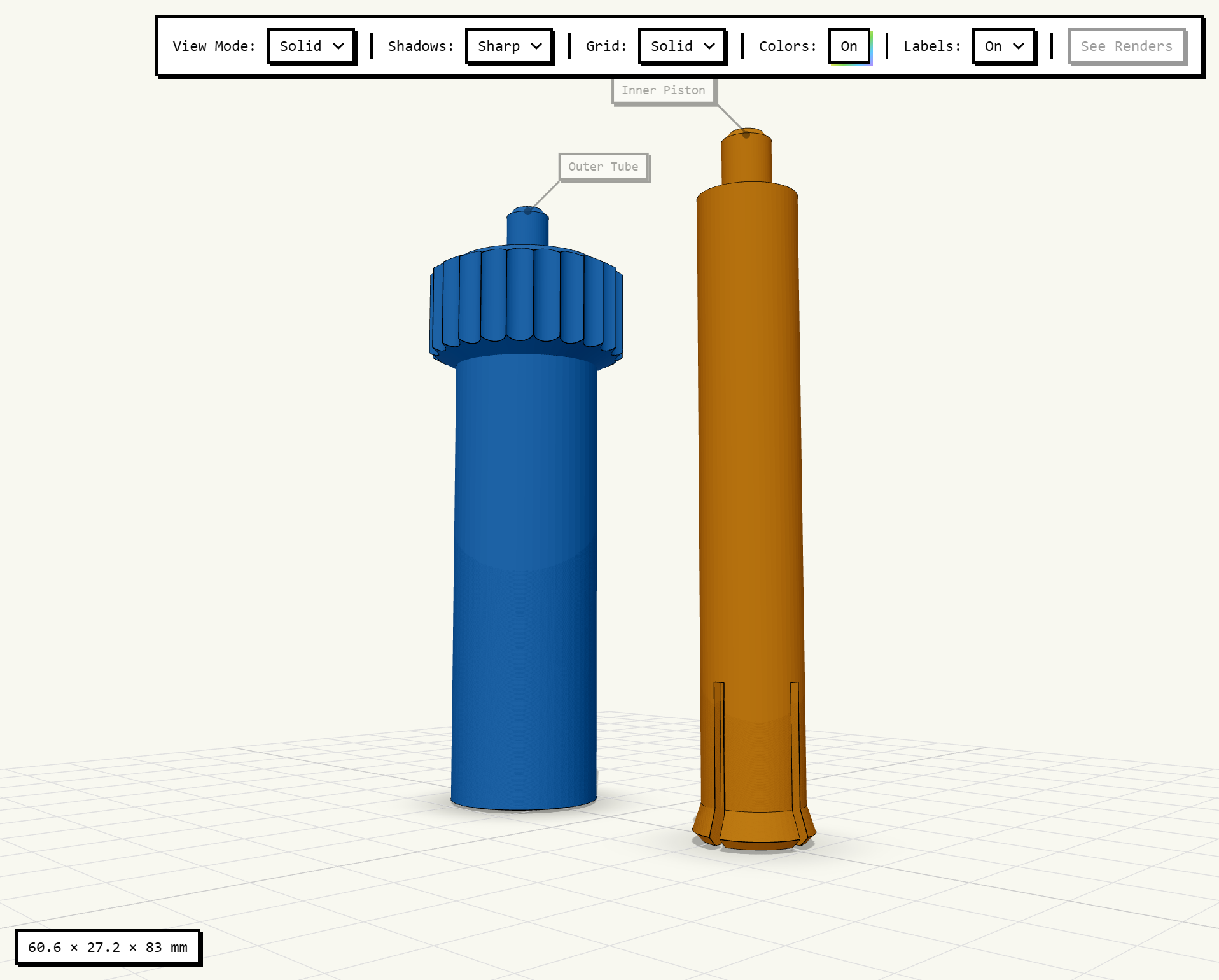
Click a part (or its label) to select it. The AI knows which part you've selected, so you can point instead of describing: select the lid and say “make this 2mm thicker” and it knows exactly which piece you mean.
Select before you refine. On a multi-piece model, clicking the part you're talking about beats describing it. “This one” is unambiguous once it's selected.
The viewer toolbar
Along the top of the viewer is a control rack:
- View Mode — Solid / Wireframe. Solid is the default photographic look. Wireframe shows the underlying mesh. Useful for inspecting topology, also looks cool.
- Shadows — Sharp / Soft. Sharp (default) gives you cast shadows and a low-angle raking light that makes embossed and engraved features pop. Best for nameplates, signs, anything with surface relief. Soft is calmer, more “product photo” — better for clean structural parts.
- Grid — Faded / Solid. Faded (default) is a print-bed style grid that fades into the distance. Solid is a clean, even grid for a more diagrammatic look.
- Colors — On / Off. Turns the per-part colours off for a plain single-material look.
- Labels — On / Off. Hides the floating part name labels when you want an uncluttered view.
The viewer toolbar matters more than you'd think. If your part has embossed text or surface detail and it looks like a grey blob, switch Shadows to Sharp. The raking light makes relief features readable.